



Alliant Online – Implementation Guide
Overview
The Alliant Online module implementation requires the steps below.
This guide includes the tasks completed by you, your IT, your marketing team, and the Alliant Implementation Specialist to prepare your customer portal for launch. Share these steps and related materials with outside IT or marketing partners as needed.
Alliant Cloud: The customer portal is set up as part of the Cloud implementation project. Alliant Cloud customers only need to complete steps 5 and 10 below.
Note: The role listed at the beginning of each step identifies who is responsible for completing that task.
Alliant Online Implementation
- Customer/IT: Acquire a web server.
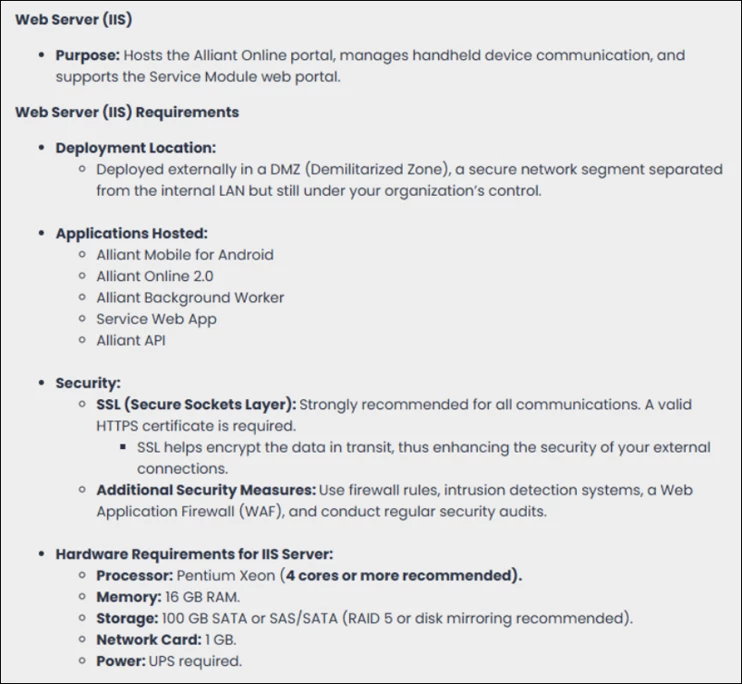
- See the In-House Server Requirements article section for more information about server requirements.
- IT: Your IT company installs Internet Information Services (IIS) on the web server.
- IT: Your IT company installs Alliant on the web server.
- See the Alliant Install Guide for reference.
- See the Alliant Install Guide for reference.
- Alliant Implementation Specialist: Alliant gets connected and configures internal Alliant Online settings.
- Customer/Website Manager: Customize your Alliant Online portal.
- You will receive a default portal with generic colors and branding.
We recommend adjusting the site settings to match your company’s website and branding, although this is not required to get started.
Review the Site Settings article for details on customizing the portal.
- You will receive a default portal with generic colors and branding.
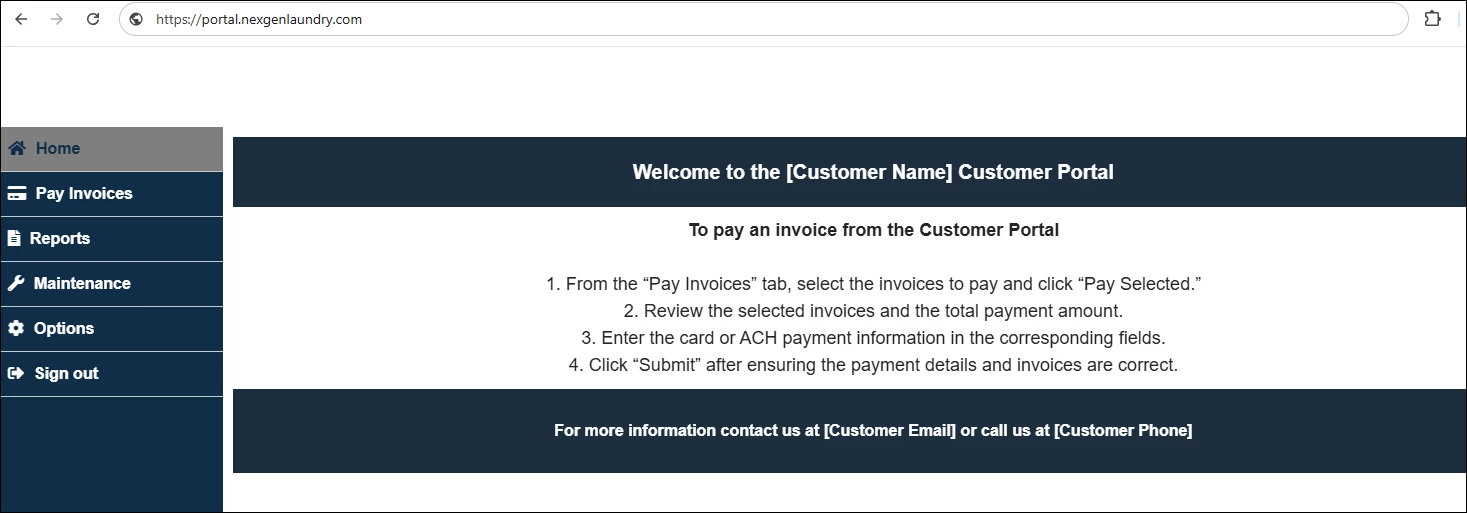
- The goal is to make the customer portal an extension of your company website and brand.
Customization may include, but is not limited to, configuring the home page using HTML and inline CSS. Whoever manages your website should assist with this step.
Review the Text Tab article section for more details about adding HTML information to the portal.
- IT: Your IT company adds logo images for the desktop and mobile versions of the portal.
- Review Changing the Company Logo in the Alliant Online Portal for instructions.
- Note: This article is available only to users with a TEXO Community login. Export the article to PDF and share it with your IT company as needed.
- Note: This article is available only to users with a TEXO Community login. Export the article to PDF and share it with your IT company as needed.
- Review Changing the Company Logo in the Alliant Online Portal for instructions.
- Customer/IT: Determine the portal URL.
- Choose a URL that includes your domain or customer name. For example: https://portal.nexgenlaundry.com/.
- Choose a URL that includes your domain or customer name. For example: https://portal.nexgenlaundry.com/.
- IT: Purchase an SSL Certificate through GoDaddy or a similar provider.
- Your IT company purchases the certificate on your behalf and applies it to IIS.
- Your Alliant Implementation Specialist binds the certificate to the Alliant customer portal.
- See the SSL/TLS (HTTPS) Security Certificates article for more information.
- IT: Your IT company publishes the portal under the proper domain—for example, https://portal.nexgenlaundry.com/.
- Website Manager: Add the portal link to your company website.
- The person responsible for managing your company website should add a button or link to the new Alliant customer portal.
- Consider adding the link to your website’s homepage, header, or main menu so customers can easily access the portal.
Once the customer portal is implemented, check out the Alliant Online Payment Adoption Strategies to encourage customers to visit and use the portal.